
- Accessing the portal
- Manage your account
- View and pay invoices
- Manage your billing address
- Update payment method
Before You Begin
✋ The portal will be accessible starting December 1, 2026. You will not be able to log in before this date.
Accessing the Portal
You can access the portal using this link, or by clicking the link included in your email from billing@digfamily.com.
Enter the email address associated with your billing account (the one you use to receive your invoices) then click Continue.
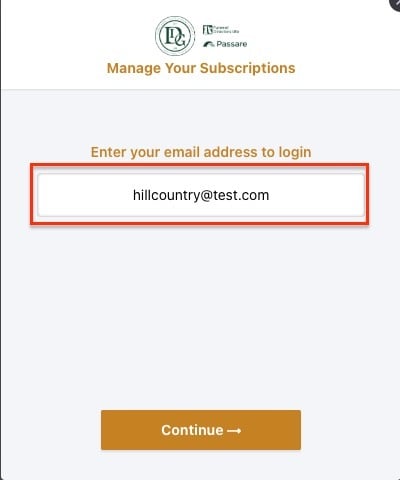
Note: The portal uses a secure one-time password (OTP) to log you in. For future access, you can set a password or continue logging in with an OTP.
Check your email for a 6-digit One-Time Password (OTP). Enter the code, then click Login.
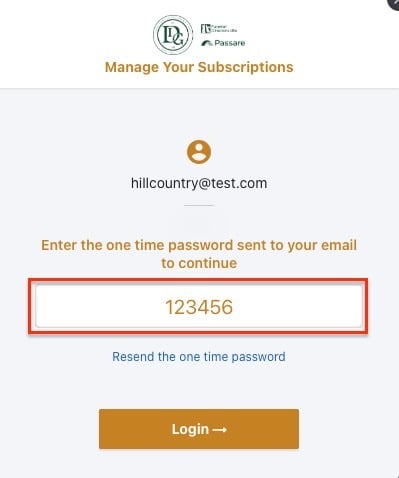
Didn't receive your OTP code? Check your spam or junk folder. Ensure you are using the exact email address where you receive your FDL or Passare invoices.
Manage your account
Select an Account
If your email is associated with multiple funeral homes or partner accounts, you will see an account selection screen after logging in. Select the specific account you wish to manage.
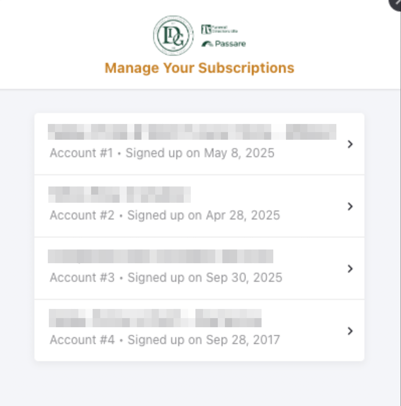
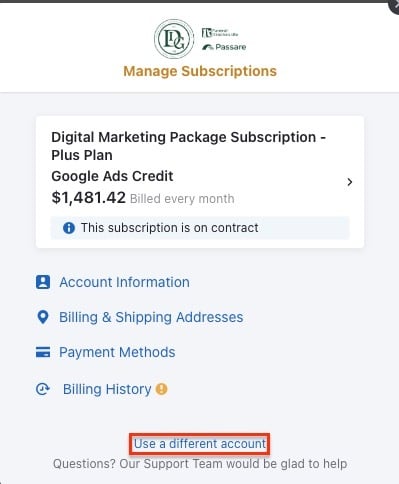
To switch accounts later, click Use different account from the main dashboard.
Subscription Details
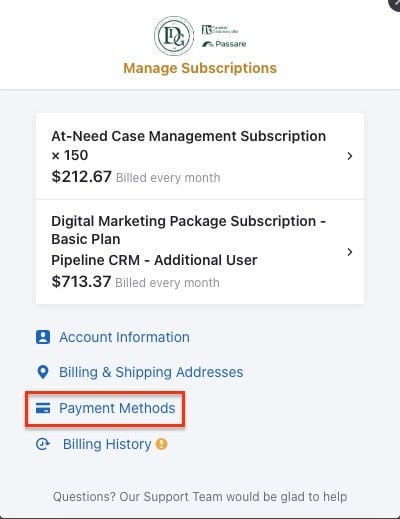
Once logged in, you will see your account subscriptions at the top.
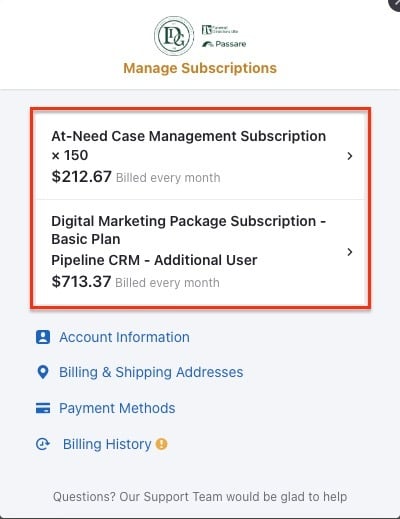
Click on a subscription to view the details or update the payment method.
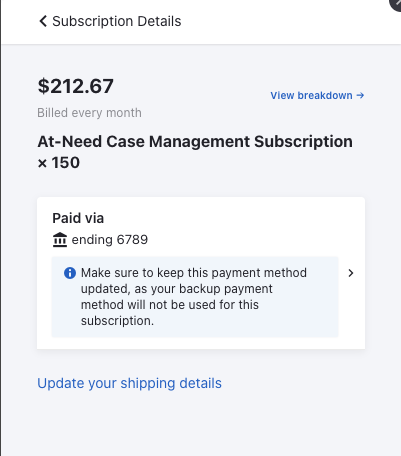
Update Email and Password
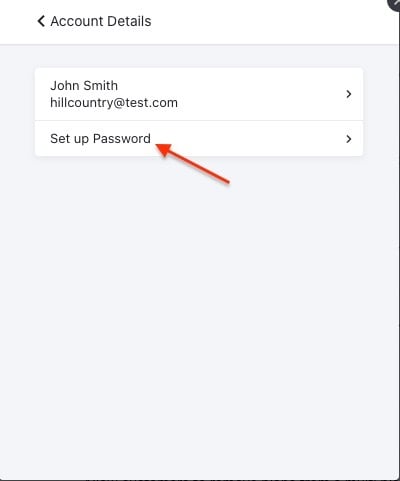
Select Account Information to update the email address or set a permanent password for future use.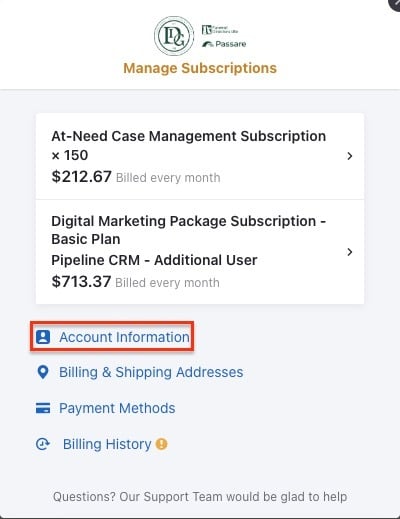
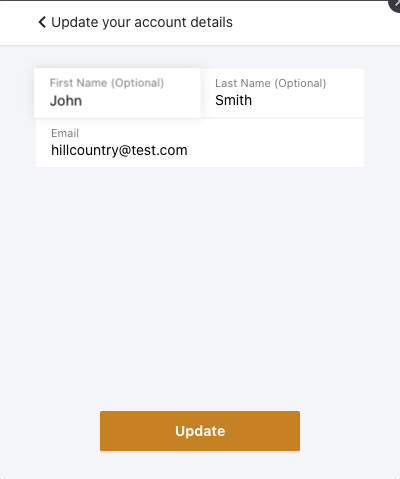
Click the email at the top of the page to update the email address.
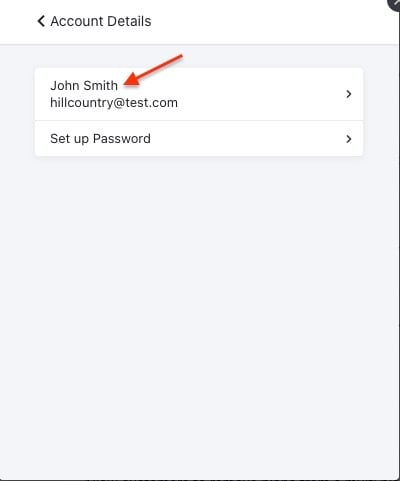
Edit the fields, then click Update.
To log in using a password, click Set up a password from Account Details.
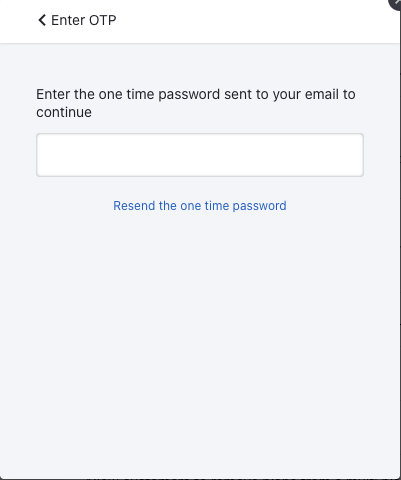
A one-time password will be sent to your email; you will need to enter it before setting up your password.
View and pay invoices
Click Billing History to see the invoices associated with the account.
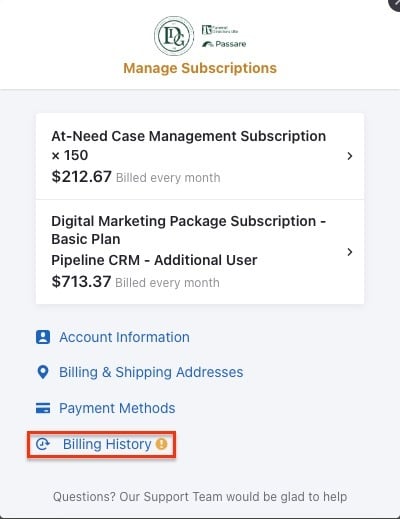
Click Download next to any invoice to view a PDF copy.
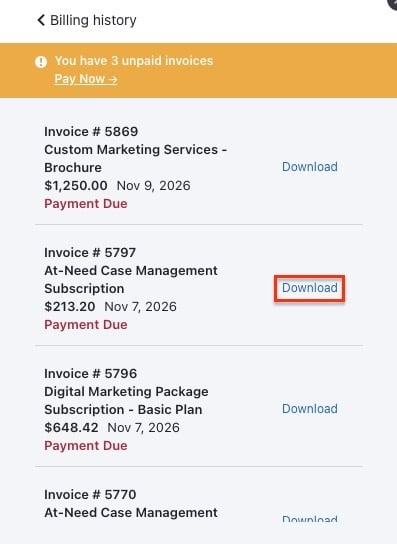
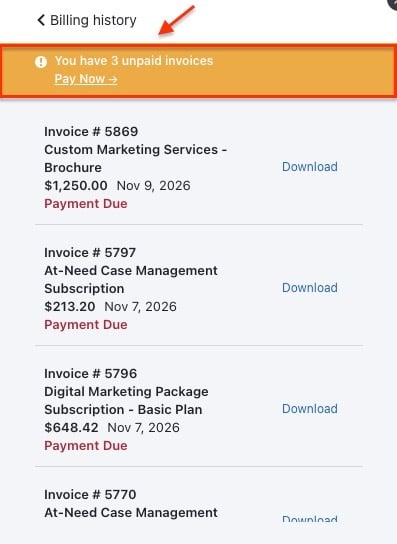
If you have an unpaid balance, a banner will appear at the top of the screen. Click to view the unpaid invoices.
When the page opens, all unpaid invoices will be selected.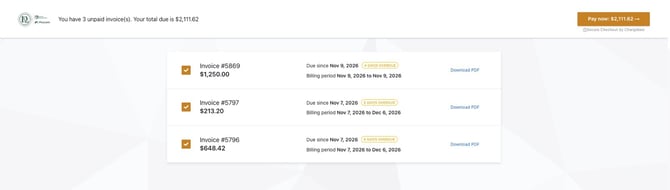
Select the invoices you want to pay, then click Pay Now.
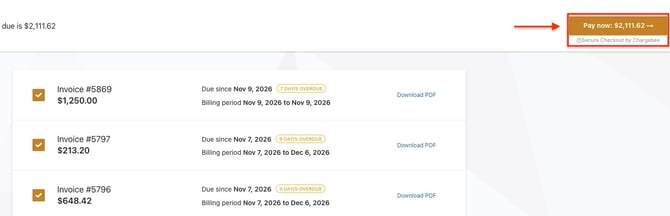
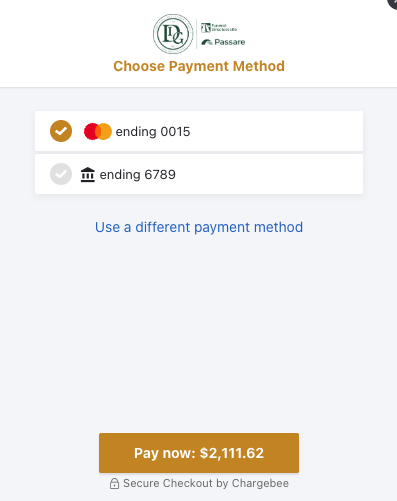
Choose an existing payment method, or click Use a different payment method to add a new one, then click Pay now.
Manage your billing address
Update your billing address at any time under the Billing & Shipping Addresses section.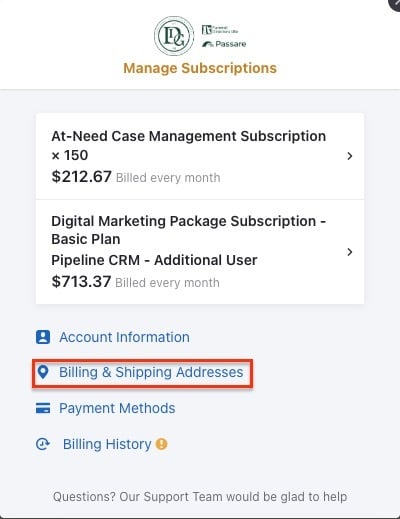
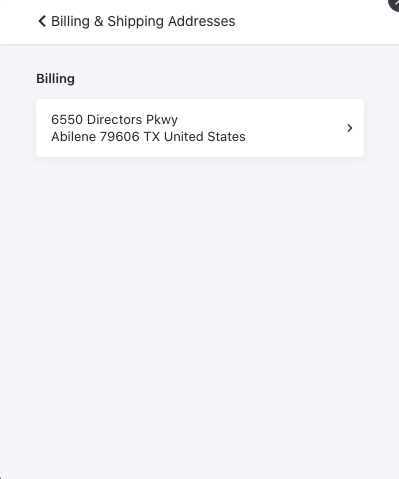
Click the current address to make updates.
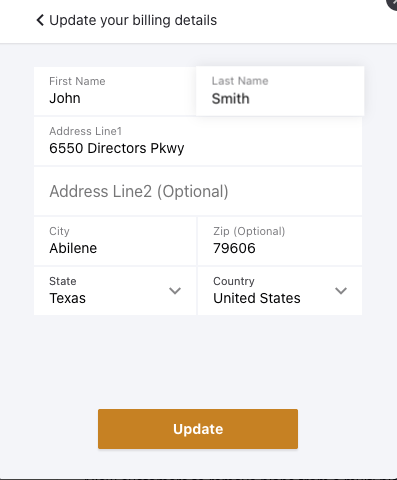
Make the necessary edits, then click Update.
✋ Shipping address represents your official place of business. If you need to update this, please contact support to ensure your records are up to date across all systems.
Update payment methods
IMPORTANT: To ensure your information remains secure, we request that all payment updates be made directly through the portal rather than by phone or email.
Click Payment Methods to update the payment methods associated with the account.
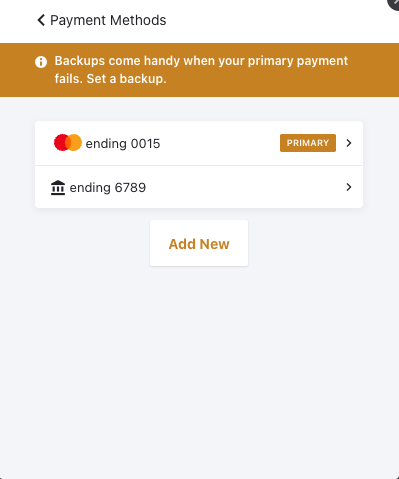
To add a new method, click Add New.
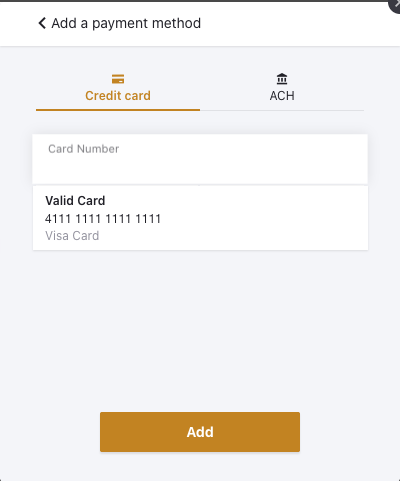
Select Credit Card or ACH. Enter the information, then click Add.
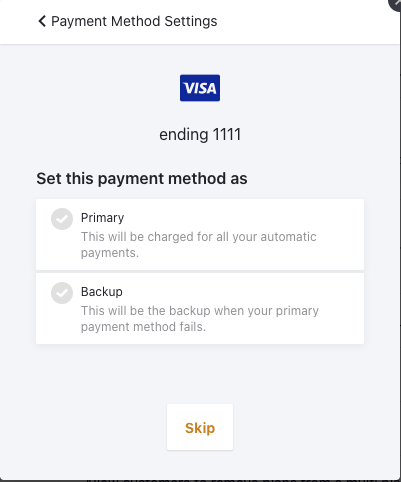
You can designate a method as Primary or Backup.
Note: If you are on Autopay, you cannot remove your only payment method. For questions about Autopay, please contact our billing support team.
Need More Help?
If you have questions about your subscription or need assistance navigating the portal, our team is here to help:
Email: billing@digfamily.co
Phone: [Insert Support Phone Number]